
Dentrix already has the unscheduled treatment list. The follow-up problem is what happens after the report: which plans still have no appointment, who owns the next contact, and what outcome was recorded. Most practices do not need a new report. They need a short working batch. This is an independent guide for appointment follow-up. It is not a Henry Schein, Dentrix, or Dentrix Ascend integration, endorsement, or screenshot.
Open Dental offices can use the sibling guide, how to pull the Open Dental unscheduled treatment report. If you are not ready to connect either system, start from aggregate counts and the revenue leak calculator.
Which Dentrix view to use
Desktop Dentrix documents two different tools. They answer related questions, and mixing them up is how a front desk calls the wrong people.
| View | Best for | Watch-out |
|---|---|---|
| Unscheduled Treatment Plans list | A dated list of patients who have treatment plans and do not have appointments for all of those plans. | An appointment for other treatment still leaves the patient on the report, marked with an S. |
| Treatment Manager | A working view you can filter by treatment-plan dates, procedure codes, dollars, and insurance benefits remaining. | The Unscheduled List in the Appointment Book is not the same thing as treatment that was never appointed. |
Unscheduled Treatment Plans list
Dentrix Help documents this path for the list report:
- In the Office Manager, click Reports, point to Lists, then click Unscheduled Treatment Plans.
- Set the report date. The default is today.
- Choose the patient range and the statuses you want. Dentrix uses the status stored in the Family File.
- Choose the provider basis: Prov1 from Family File, or Treatment Plan Provider, then set the provider range.
- Set a treatment-plan amount range, or leave All Amounts. Choose a detailed report, a condensed report, or both.
- Set the creation-date range for the treatment-planned procedures.
- Use the referral options only if you mean to drop referred-to, referred-by, or non-referral procedures. Select Exclude Continuing Care Procedures when the goal is treatment follow-up rather than hygiene recall.
- Click OK. Dentrix sends the report to the Batch Processor. Open that job and review it before anyone uses it for outreach.
Check the Dentrix Help topic for the Unscheduled Treatment Plans Report against your installed version. Menus move between releases.
Treatment Manager
Use Treatment Manager when the list report is too blunt. Current Dentrix Help opens it from the Appointment Book, then Options, then Treatment Manager. Some offices also reach it from an Office Manager control. Open View Setup and set filters you can explain to the person working the list:
- Treatment plan dates. Limit the list to plans entered in the window you intend to work.
- Minimum treatment-plan total and, if you use it, a minimum insurance estimate. These are sorting choices, not clinical urgency.
- Procedure code range when you want one family of treatment, such as crowns, instead of every code in the office.
- Benefits remaining when the office is working cases that may lose unused benefits. Confirm the benefit figures in the chart before you mention them to a patient.
The Treatment Manager report help says to select With an Unsched Appt when you want treatment plans that do not have a scheduled appointment, then choose columns and print Treatment Manager List with treatment-plan procedures included. Read that label in your version. Nearby filters for the Appointment Book Unscheduled List — all patients, only patients with an appointment on that list, or only patients without one — describe a different queue.
Column help is in Dentrix Treatment Manager show-columns. The report steps summarized above are in the Unscheduled Treatment Plans Report — Treatment Manager topic. If the list is missing people you expected, a filter is excluding them. Re-open View Setup before you assume the plan was scheduled.
How to read S and U
Dentrix Help for the list report uses two marks next to the name:
- S means the patient has an appointment scheduled for other treatment-planned work that is not the item you are looking at. The case on this report can still be open.
- U means the patient has an appointment on the Unscheduled List. That is a held or broken appointment slot, not proof that treatment is booked.
- Blank means Dentrix found no scheduled appointment and no Unscheduled List appointment.
Staff should open the chart and the Appointment Book before outreach. A report is a snapshot. Patients schedule, complete, or decline treatment between the time the Batch Processor finishes and the time someone calls.
If the office is on Dentrix Ascend
Dentrix Ascend is a different product from desktop Dentrix. It does not use Office Manager or the Batch Processor. Henry Schein One’s Dentrix Ascend Help, reviewed on 2 November 2026, documents an Unscheduled Treatment report for patients with treatment-planned procedures that have not been scheduled. For each patient the help topic lists last visit date, insurance renewal month, remaining benefits, and the planned procedures with provider and fee. Patients are grouped by primary contact, with that contact’s name, phone number, and email.
The same help topic gives this path:
- On the Home menu, under Reports, select Power Reporting.
- Open the Unscheduled Treatment report.
- Read the Data as of time. Treatment entered after that sync is missing until the next sync. The button also shows when the next sync is expected.
- Use Toggle Edit to add fields and filters. Ascend’s training notes say a multi-location organization has to select at least one location before the report generates, and that date filters can narrow the list.
- Export PDF, XLSX, or CSV, or view the report as HTML. You can save the layout as a personal or organization template.
Check the Dentrix Ascend Unscheduled Treatment Report topic against your organization. Menus and the sync schedule can differ by site. The report is still a snapshot. Open the chart and the schedule before anyone calls, and ask the same three questions as on desktop: is the care still planned, is the relevant visit booked, and what did the patient agree to?
For how a later integration could use treatment and appointment data, see Dentrix and Dentrix Ascend follow-up. You can still work a first batch with no API.
Appointment follow-up after the report
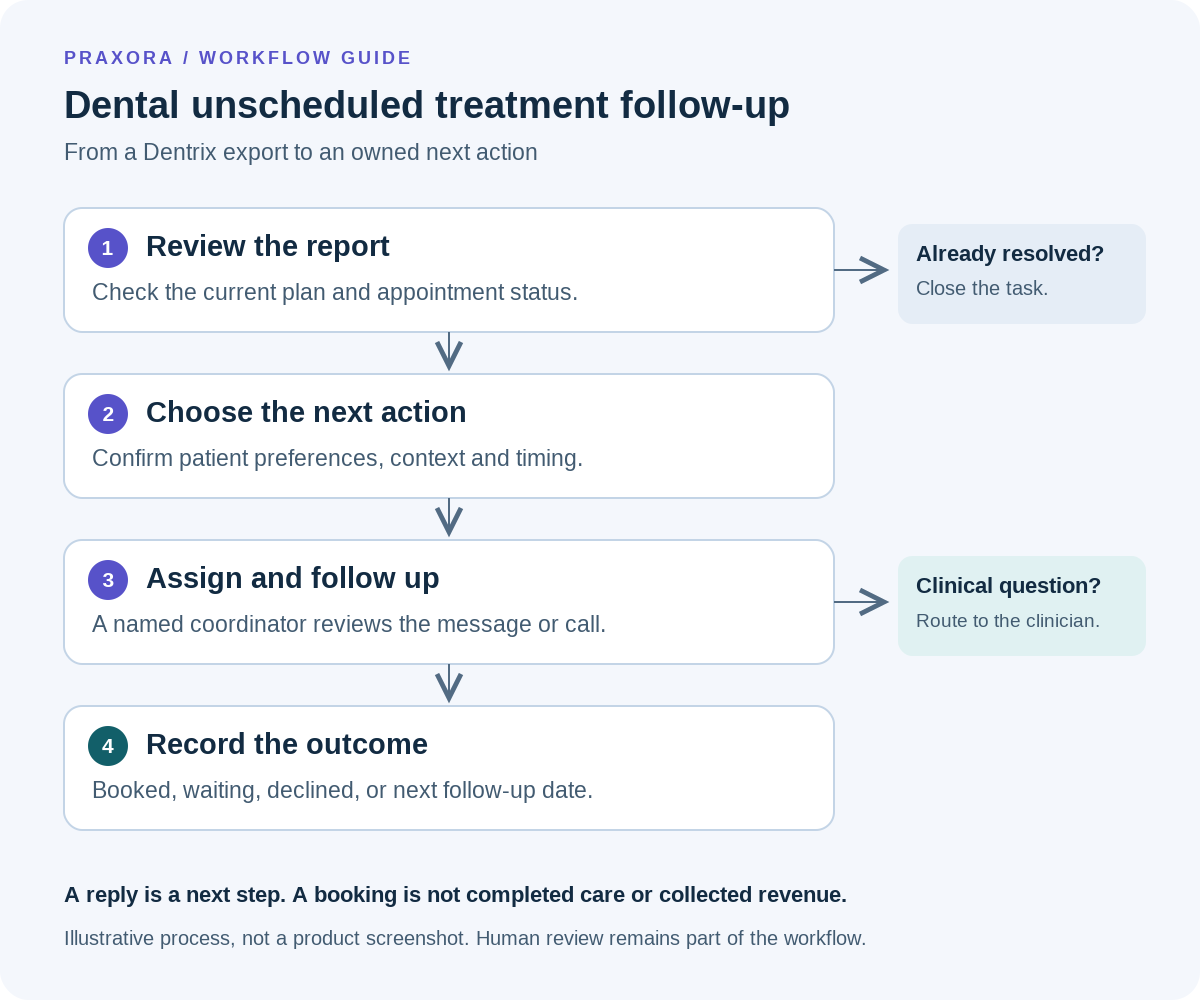
Unscheduled treatment and appointment follow-up are the same case at two moments. The report answers which planned procedures have no appointment. Follow-up answers who contacts that patient, on what date, and what happened after the reply.
Before a row leaves the report and enters a working list, a person should confirm:
- The procedure is still treatment-planned. Completed or removed plans are not a queue.
- There is no appointment for that procedure. On desktop Dentrix, an S means the patient already has an appointment for other treatment-planned work. That visit does not close this row. “Any future appointment” is the wrong test in Dentrix and in Dentrix Ascend.
- The last touch is visible, so the next message does not repeat one the patient already answered.
Then the case needs one named owner, a next action with a date, and an outcome when it moves: scheduled, declined, waiting on insurance, unreachable, or not a candidate. The day-to-day sequence is unscheduled treatment follow-up. Message examples, if the team is writing the first texts, are on unscheduled treatment text samples.
Owners and recorded outcomes
Sort the reviewed rows the same way you would an Open Dental export. Honor patient preferences and any date the clinical team already promised. Within the cases that are still eligible:
- Expiry first. Cases with benefits that reset or expire soon go first. Confirm the dates before you mention them. A financial deadline is not a clinical urgency score.
- Value next. Among similar dates, work higher-value treatment first.
- Days since last contact. Break ties toward cases that have gone longest without a touch.
Every row that leaves the report and enters the working file needs one named owner, a next action with a date, and a recorded outcome when it moves: scheduled, declined, waiting on insurance, unreachable, or not a candidate. A short list of real opportunities beats a long list of dead rows.
Starting with your first 20
Pick a batch the team can finish, such as twenty open cases. For each one, record the source date, the appointment check, the owner, the known barrier, the next action, and the follow-up date. Keep that working file inside the practice’s approved systems.
The public calculator and the free review only need aggregate counts and values: how many presented plans are still unscheduled, and a rough value, not names or chart numbers. Run those figures through the dental revenue leak calculator, then reconcile replies against the practice record before you add the next batch. Count bookings separately from completed care and collections.
Turn the export into columns with a working batch. The order of those twenty cases is value, expiry, insurance remaining, and touch history.
Frequently asked questions
Where is the unscheduled treatment report in Dentrix?
In desktop Dentrix, Office Manager, Reports, Lists, Unscheduled Treatment Plans sends a list to the Batch Processor. Treatment Manager is a second, more filterable view. Confirm the menu in your version. Dentrix Ascend does not use that Office Manager path.
What does the S or U next to a patient name mean?
Dentrix Help says an S means the patient has an appointment for other treatment-planned work, and a U means an appointment is on the Unscheduled List. A blank field means no scheduled or unscheduled appointment. An S is not proof that the treatment on this report is booked.
Do we need a Dentrix API connection before we can work the list?
No. A practice can export or print the report, review a short batch, and estimate the opportunity with aggregate counts. The calculator and free workflow review do not require patient-level data or a Dentrix connection.
Where is unscheduled treatment in Dentrix Ascend?
Dentrix Ascend Help says to open the Home menu, choose Reports, then Power Reporting, and open the Unscheduled Treatment report. It lists treatment-planned procedures that have not been scheduled. Confirm the menu in your organization. Desktop Dentrix uses the Office Manager path above, not Power Reporting.