
Start with a report, then verify each opportunity. Treatment planning, patient acceptance and appointment status are different facts. Use the report as a starting queue; review the chart and last conversation before deciding what follow-up is appropriate.
What this report shows
Use the list to ask what care is still planned, whether the relevant visit is booked, and what the patient actually agreed to. A row cannot answer all three questions by itself. In particular, an appointment for one type of visit does not establish that all other planned care has been scheduled.
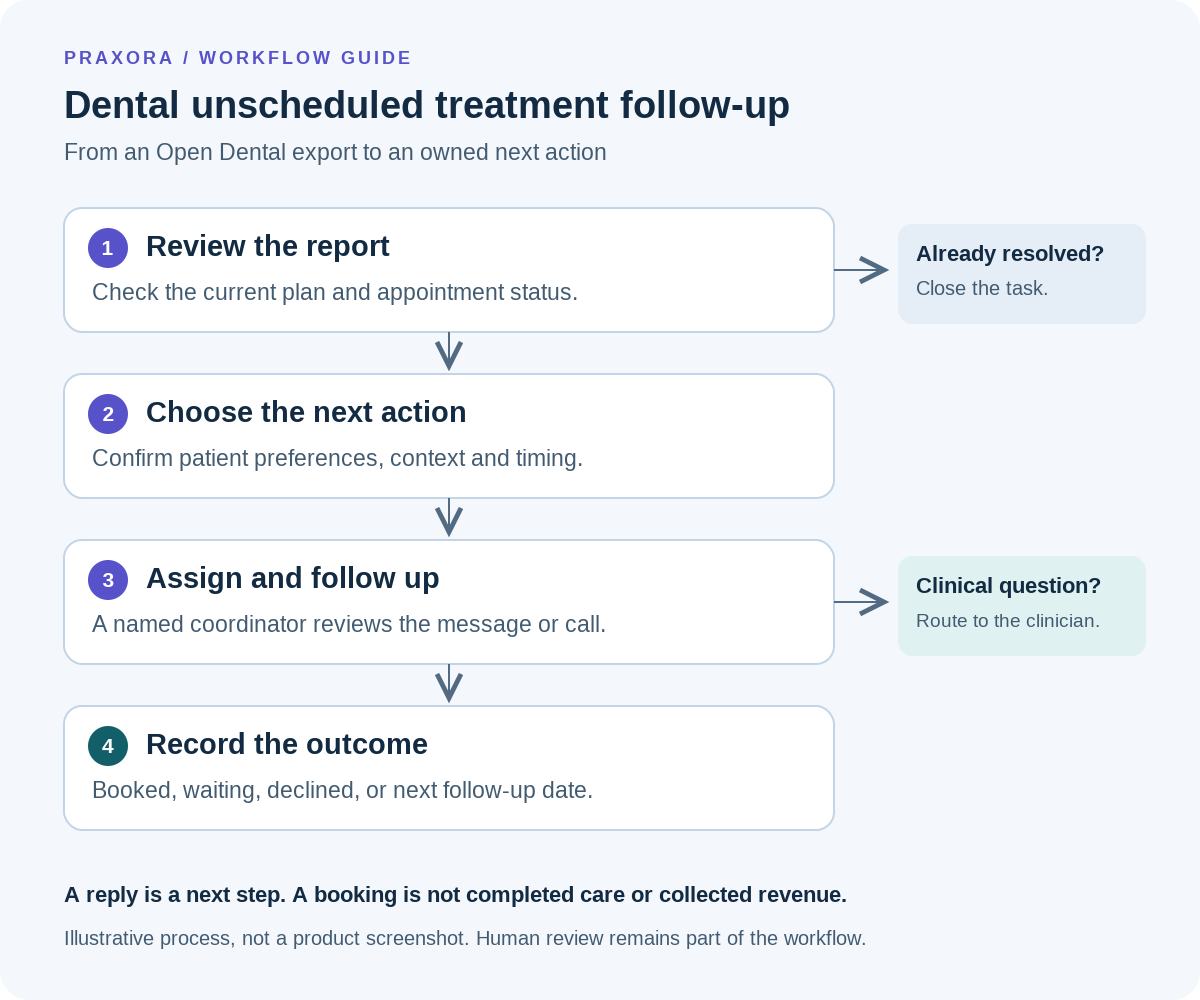
On its own, the report is just a list. It becomes a workflow when every row carries three things: a named owner responsible for the next step, a next action with a date, and a recorded outcome once the case moves. Without those, the same report gets re-run for months while the same cases sit untouched.
Pulling the report in the Treatment Finder
Open Standard Reports → Lists → Treatment Finder. The initial list targets active patients with fee-bearing planned care, no appointment and calendar-year insurance. To adapt it:
- Leave Include patients with upcoming appointments unchecked for an unscheduled-patient list.
- Set TP Date From / To, your clinic and provider. Use Code Range for a focused procedure group.
- Review insurance filters. Include secondary insurance and no insurance broadens coverage and overrides the benefit-start-month filter.
- Click Refresh List, review the result, then use Export to File for a text or Excel file.
Check the official Open Dental Treatment Finder manual and screenshots for your version. This is an independent guide, not an Open Dental integration or endorsement.
Prioritizing the export
A long export needs a review order. First honor patient preferences, agreed contact dates and the clinical team’s instructions. Within eligible cases, consider:
- Expiry first. Cases with insurance benefits that expire or reset soon go first — that coverage disappears whether or not the patient acts.
- Value next. Among cases with similar expiry, work higher-value treatment first.
- Days since last contact. Ties break toward the cases that have sat longest without a touch, so nothing goes months without attention.
These are operational sorting choices, not clinical urgency scores. Confirm benefit dates and coverage before referring to them, and avoid implying that a financial deadline changes a patient’s clinical need.
Owners and recorded outcomes
Every row on the worked list needs an owner — one named person responsible for the next action — plus a next action with a date and a recorded outcome when the case moves: scheduled, declined, waiting on insurance, unreachable, and so on.
Before any outreach, a person reviews the row and confirms the case is still open. Reports are snapshots; patients schedule, complete, or decline treatment between exports. Human review of the current state is what keeps the team from contacting the wrong patients, and it is a non-negotiable step in the workflow.
Starting with your first 20
Choose a batch your team can finish, such as twenty open cases. For each one, record the source date, current appointment check, owner, known barrier, next action and follow-up date. Keep the working file inside your practice’s approved systems; the public calculator and free review only need aggregate counts and values.
Before adding the next batch, reconcile replies and appointments with the practice record. Count bookings separately from completed care and collections. A patient who asks to wait needs an agreed next date; a declined plan needs an honest closed status. If two team members could contact the same person, choose one owner before outreach. These habits make the process workable even before any automation is configured.
Working it with Praxora
The unscheduled treatment report tells you where the opportunity sits. It does not do the follow-up for you. Praxora is dental follow-up software that turns that exported list into a working process: every case gets human review before outreach, a named owner, a clear next action, and a recorded outcome — so a case that goes quiet for a week has a visible next step instead of sliding back into the pile, and a case that schedules leaves the list with its outcome recorded.
The workflow is deliberately human-led. Software keeps the list honest — what is open, who owns it, what happened last — and people make the judgment calls: is this case still appropriate, what is the real barrier, what should happen next. That combination is what converts a report into recovered treatment instead of another spreadsheet the front desk dreads.
Once the first batch is worked to completion, the same structure scales to the rest of the report, and then to the other two leaks: missed calls and overdue recall. Automation is a direction this workflow can grow into — for example, routine reminders wrapped around a human-reviewed list — rather than a feature to buy before the basics work. If you want a sense of what the report is worth before you start, run your aggregate numbers through the revenue leak calculator: no patient data required, just the shape of your unscheduled list.
Frequently asked questions
Where do I find the unscheduled treatment report in Open Dental?
Open Standard Reports, then Lists, then Treatment Finder. Review the filters, refresh the list and export it. Verify acceptance and current appointment status before outreach.
How often should our practice pull this report?
Most practices do well pulling it weekly. Have a person review each row before outreach, because reports go stale: patients schedule, complete, or decline treatment between exports.
What do we do with cases that have been unscheduled for months?
Re-check that the treatment is still open and appropriate, then update the owner and the next action and record the outcome honestly — including declined or not a candidate. A short list of real opportunities beats a long list of dead rows.
For the broader workflow, see unscheduled treatment follow-up and unscheduled treatment text samples. Dentrix offices should use the Dentrix unscheduled treatment report instead of this Treatment Finder path. After the export, build a working batch and sort it by value, expiry, insurance remaining, and touch history. Either way, estimate the backlog with the revenue leak calculator before you connect an API.